

npm
The npm method requires Node.js >= 22.5.0 (DBHub uses Node’s built-in
node:sqlite module). The Docker image bundles a compatible Node runtime, so no local Node install is needed when running via Docker.- npx
- Global Installation
Minimal Installation
By default, DBHub attempts to install drivers for all supported databases (PostgreSQL, MySQL, MariaDB, SQL Server, Oracle, SQLite). If you only need specific databases, you can skip the unnecessary drivers to reduce installation size. This applies tonpm install (global or local). When using npx, npm will attempt to install all optional dependencies, but some drivers may be skipped if their installation fails, a required transitive dependency is missing, or the platform is not supported.
pg— PostgreSQLmysql2— MySQLmariadb— MariaDBmssql— SQL Serveroracledb— Oracle (Thin mode: pure JavaScript, no Oracle Instant Client required)
node:sqlite module (Node.js 22.5+), so it requires no driver package or native compilation and is always available.
When a driver is not installed or a required dependency is missing (e.g., a transitive dependency like
@azure/core-client for the SQL Server driver), DBHub will skip that connector at startup and log a message. All other connectors will work normally. SQLite (including --demo mode) needs no extra driver — it relies on the built-in node:sqlite module.MCP Bundle (.mcpb)
The MCP Bundle is a one-click install for MCPB-compatible clients — Claude Desktop, Claude Code, MCP for Windows: download the.mcpb from the latest release, install, enter your connection string. Read-only by default, no Node.js or JSON editing required — the recommended path for non-technical users. The guide also covers packaging your own bundle.
Claude Code Plugin
The Claude Code Plugin registers the DBHub MCP server in Claude Code with one install command and adds/dbhub:setup and /dbhub:explore skills. Claude Code prompts for the connection string and keeps it in secure storage. Read-only by design, like the MCP Bundle.
Docker
- Docker Run
- Docker Compose
Client Integration
Once DBHub is installed and running, configure your MCP client to connect to it.Claude Code
Prefer a one-command, read-only install with a prompted connection string? Use the Claude Code Plugin. The manual registration below gives full control over flags, transports, and TOML configs.
- CLI
- Project Configuration
- User Configuration
- Stdio
- HTTP
For local database connections, use stdio transport:
The
-- separates Claude’s flags from DBHub’s arguments. Everything after -- is the DBHub command.Claude Desktop
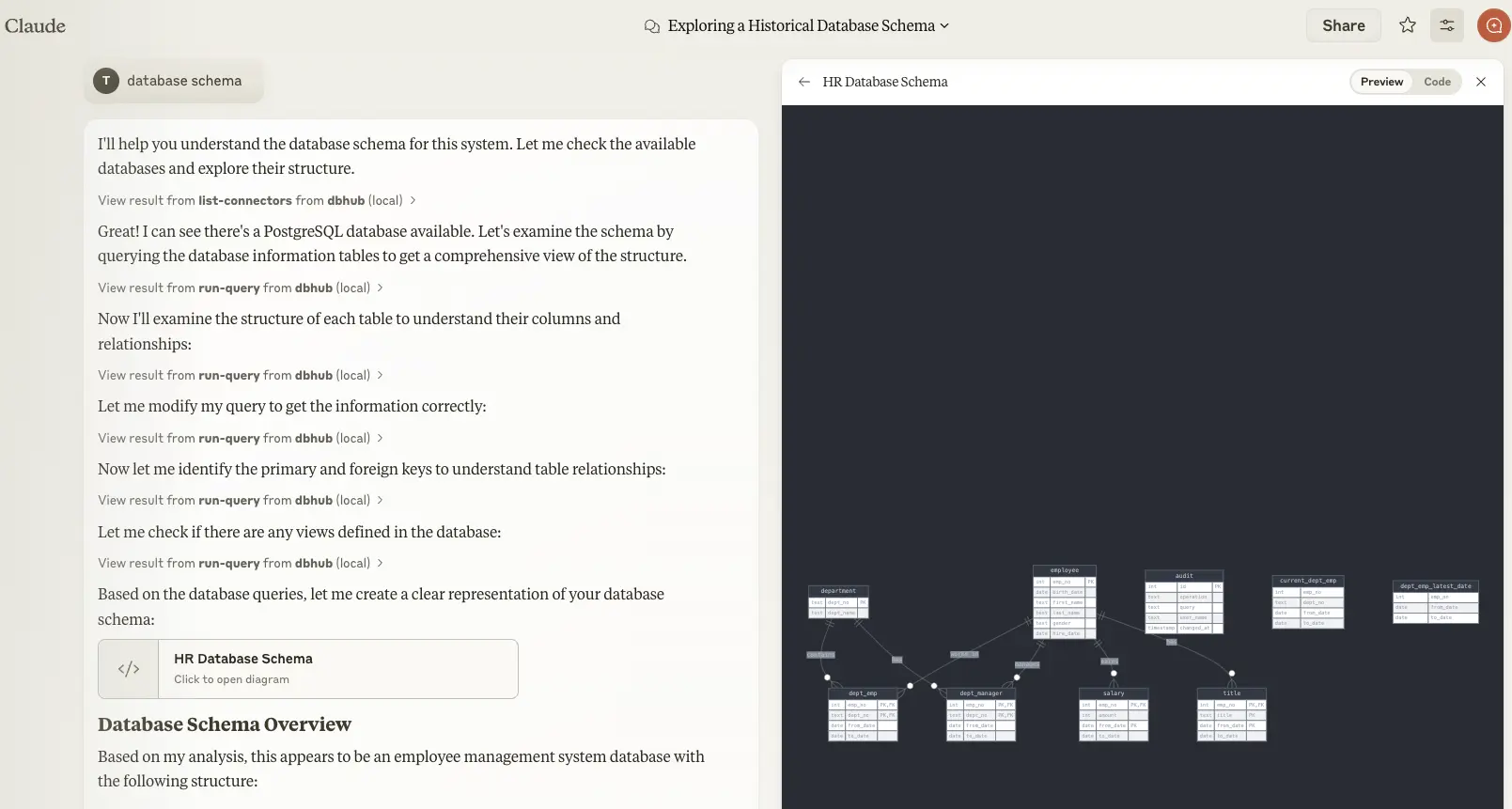
Prefer a one-click, read-only install with no JSON editing? Use the MCP Bundle. The manual config below gives full control over flags and transports.
- MacOS/Linux
- Windows
- Demo Mode
Edit
~/Library/Application Support/Claude/claude_desktop_config.json:~/Library/Application Support/Claude/claude_desktop_config.json
- Verify your DSN connection string is correct
- Check that the database is accessible from your machine
- Review Claude Desktop logs:
~/Library/Logs/Claude/mcp*.log(MacOS)
Cursor
- One-Click Install
- Stdio (Local)
- HTTP (Remote)
- Project-Specific
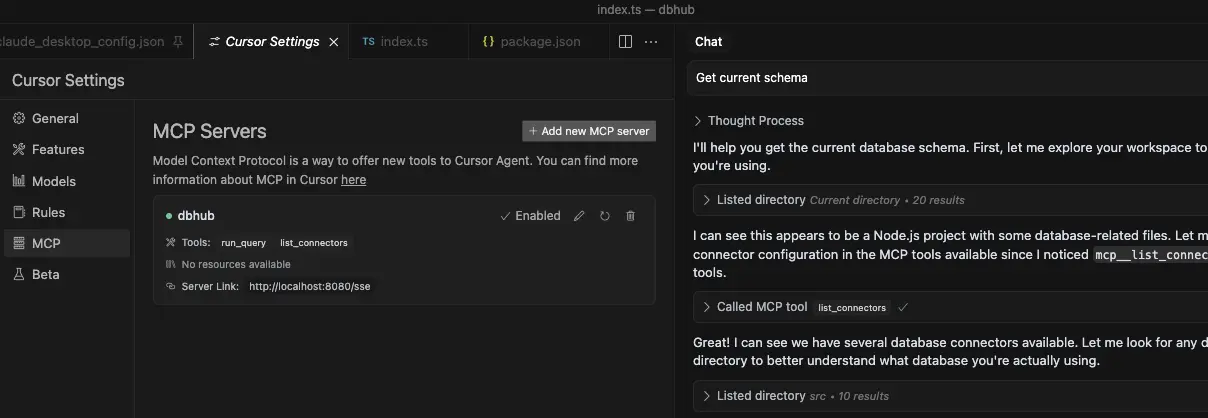
Click the link below to install DBHub in Cursor: After installing, edit the DSN in your Cursor MCP settings to point to your database.
After installing, edit the DSN in your Cursor MCP settings to point to your database.VS Code
VS Code has native MCP support through GitHub Copilot. Create.vscode/mcp.json in your project root:
- Stdio (Local)
- HTTP (Remote)
- Input Variables
- Config File
For local database connections, use stdio transport:
.vscode/mcp.json
GitHub Copilot CLI
- Interactive
- Config File
- Demo Mode
Use the Copilot CLI to interactively add the MCP server:When prompted, you’ll need to provide:
- Server type: select
local(the default) - Server name: for example,
dbhub - Command:
npx @bytebase/dbhub@latest - Arguments: transport (e.g.,
--transport stdio) and connection details (either--dsnconnection string or--demofor the demo database)
Codex
- CLI
- TOML
- Verification
Dify
DBHub must be running as an HTTP server for Dify to connect. Start DBHub with HTTP transport:- In Dify, navigate to Tools → MCP
- Click Add MCP Server (HTTP)
-
Configure the server:
- Server URL:
http://localhost:8080/mcp(or your DBHub host) - Name:
DBHub - Server Identifier:
dbhub(permanent, max 24 characters)
- Server URL:
- Click save. Dify will automatically discover DBHub’s tools.
- Agents: Tools appear alongside built-in tools, use “Add All” to enable all DBHub tools
- Workflows: Tools appear as available node types
- Dify only supports HTTP transport (not stdio)
- DBHub must be network-accessible from Dify
LibreChat
DBHub can be integrated with LibreChat using either stdio or Streamable HTTP transport.- stdio
- Streamable HTTP
librechat.yaml
librechat.yaml